
Operate
The admin console
Everything an administrator does lives at /admin, in seven views
down the left-hand menu: Workspace (Overview, Knowledge, Knowledge graph,
Surfaces), People (Users & groups), and System (Settings,
API & MCP). This page is a three-minute tour of each — what it’s for, and the one or
two things people miss. Every section links into the manual for the full depth.
Overview
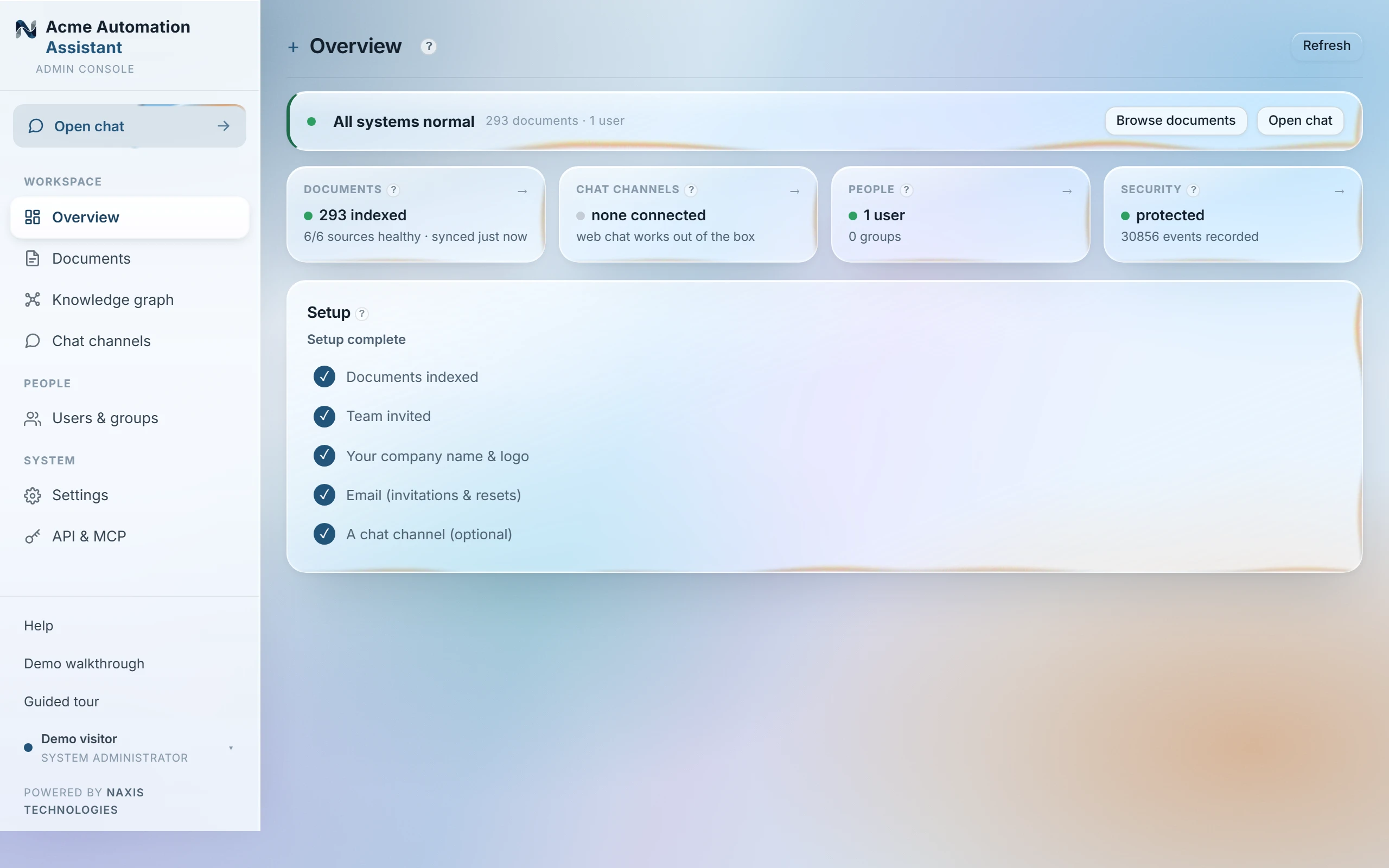
The first screen you see: a status line, tiles for Knowledge, Surfaces, People and Security, “Most active users” over the last seven days, and a Setup checklist. Green means nothing needs you.
- The status line carries three shortcuts — Upload document, Add user, Sync sources — usable from anywhere, without switching views first.
- “Needs attention” only ever lists things actually broken — a source that can’t sync, a channel that’s dropped, invitations nobody’s opened yet. An empty list is a real all-clear, not a page still loading.
Full guide: the Overview page, tile by tile →
Knowledge
A source is a place the assistant reads from. Connect one and it indexes the material, then keeps it current on its own schedule; Uploaded documents is the one built-in source, for files you drop straight in. The catalog is organised into ten categories in the manual — from files and drives to issue trackers and support desks — each connector taking one read-only credential.
- Upload only indexes the file itself, not a whole folder around it.
- A document that can’t be read shows its reason right on the card, in red — there is no separate error log to go hunting through.
- Removing a source removes its documents from here; the originals in the connected account are never touched.
- Need one document handled differently from the rest of its source? Its own Access picker names specific groups, people or emails without touching anything else in the source — and it only ever adds who can read it (more under Users & groups, below).
Full guide: what the source-card states mean → · browse the connector catalog, by category →
Knowledge graph
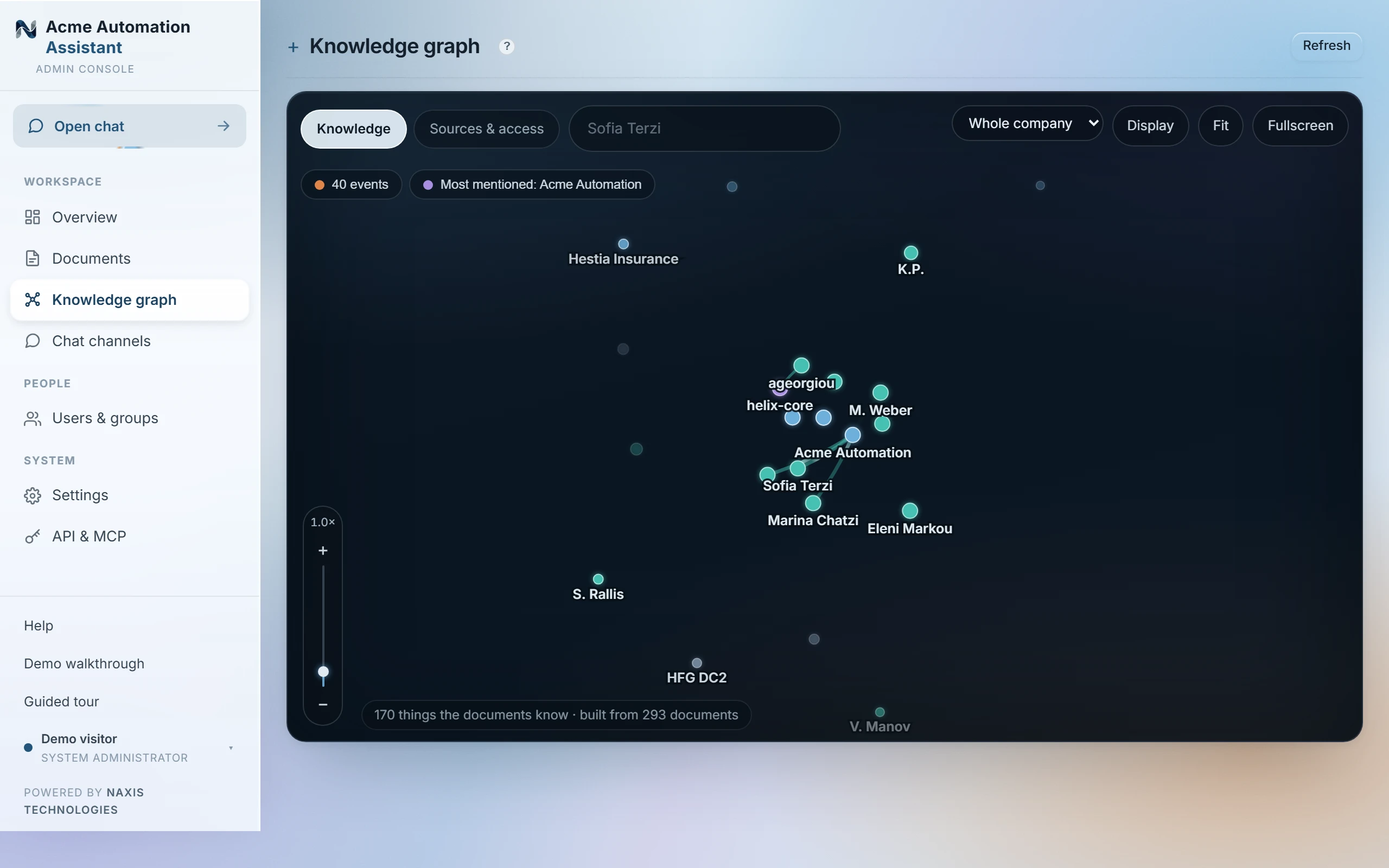
A map of what the documents actually know — the people, organisations, projects, places and events they mention, joined by the relations the documents themselves state. It’s a picture of the index, not a separate system: click anything and the passages behind it open right there.
- Switch to Sources & access and the same canvas draws the structural picture instead — sources, documents, groups, and who reaches what.
- The “whose view” selector redraws the whole map as one specific person’s world — a one-glance check before you trust a new group setup.
Full guide: reading the graph →
Surfaces
Lets people ask from where they already work — Slack, Teams, WhatsApp, email, a widget on your own website, and others — every answer cited and access-checked exactly like the web chat.
- On some platforms the assistant is handed a verified work email with a person’s very first message, so they’re recognised with nothing set up in advance; on others you add each person by hand — phone number, username or email — or they self-link with a one-time code from the web chat.
- Group-chat behaviour is set per platform, not by one global switch: some only answer when @mentioned, and one replies privately to the asker by default so nothing lands in the room by accident.
Full guide: every platform, with its own setup steps →
Users & groups
Accounts, and the groups that decide what they can read. A User asks questions; a System administrator also runs this console. A group is just a label — put someone in it once, and it governs every source and document that group has been granted.
Access only ever adds. A person reads a document because a group they belong to was granted it, because they were added to it by name, or because their email matches how the source shares it at the platform — never because someone else was excluded. There is no way to block one person out of a document they otherwise reach through a group: the fix is either to change that document’s access as a whole, or to change the person’s groups.
- The file map (Users → Edit → View file map) shows exactly which documents one person can and can’t read, with a reason, and lets you fix it on the spot.
- Everyone belongs to “everyone” implicitly — a document or source left in no group at all is readable by every signed-in user.
Full guide: accounts, groups and access together → · exactly how the three routes stack →
Settings
Instance configuration, in four tabs.
| Tab | What it covers |
|---|---|
| General | Branding, language, outgoing email (SMTP), the public address, and software updates when one is waiting. |
| Plan & seats | Seats used against seats included, and what the document store holds, as plain facts — usage itself is never metered. |
| Security & privacy | The hash-chained audit log and its verifier, GDPR erasure and subject export, the generated compliance manifest, and read-only deployment configuration. |
| Background activity | A read-only feed of the three jobs the assistant runs on itself — Sync, Document analysis, and Data retention. Self-healing; nothing here to start or stop. |
- Background activity lives inside Settings, not the main menu — it’s a tab, not a view of its own.
- Deployment-level configuration (database, retention periods) is deliberately read-only here; changing it means editing the deployment’s own configuration file, so the compliance manifest can never drift from reality.
Full guide: settings, operations and compliance →
API & MCP
Connect programs and AI assistants — Claude, Cursor and others — to this deployment, over two plain HTTP APIs and MCP alike. Same keys, same access rules, same audit trail as the web chat.
- Two kinds of key, nothing else: an admin key can do everything an admin can — ask, add documents, run the console by chat; a personal key only asks, with that person’s own document access.
- A key is only as good as the account that minted it — it stops working the moment that admin is deactivated, demoted or deleted.
Full guide: connecting Claude and other tools →
Last updated 22 Sep 2026